Best Free Software to Design T-Shirt Prints
by Alice Davis
What's the best free app or software to design T-shirt prints — and can free tools actually produce press-ready artwork? They can. The best free app or software to design T-shirt prints comes down to three factors: file format output, vector vs. raster capability, and compatibility with the heat press workflow in use. Whether the goal is HTV, DTF, sublimation, or screen printing, the right free tool eliminates the need for expensive subscriptions. This guide covers 11 verified free options, ranked by use case, with step-by-step guidance and real-world context for vinyl crafters and heat press operators.
Contents
- The Best Free Apps and Software to Design T-Shirt Prints
- From Sketch to Press-Ready File: A Step-by-Step Walkthrough
- Beginner Tools vs. Advanced Software: Which Fits the Workflow?
- What Real Makers Are Building With These Tools
- Insider Tips for Sharper, Press-Ready Artwork
- Fixing Common Design Problems Before the Press
- Making Free Software Work Long-Term
- Frequently Asked Questions
- Key Takeaways
The Best Free Apps and Software to Design T-Shirt Prints
Eleven free tools consistently produce results that survive the press. Each handles a different slice of the workflow — from initial concept sketching to final cut-ready SVG output. Here's how they compare across the variables that matter most to heat press and vinyl workflows.
| Tool | Type | Best Use Case | Output Formats | Vector Support |
|---|---|---|---|---|
| Inkscape | Desktop | Vector artwork, SVG/EPS for vinyl cutters | SVG, EPS, PDF, PNG | Full |
| GIMP | Desktop | High-DPI raster editing for DTF/sublimation | PNG, TIFF, PSD | None |
| Krita | Desktop | Digital painting and illustration | PNG, TIFF, PSD, KRA | Limited |
| Canva (Free) | Browser | Text-heavy designs, quick mockups | PNG, JPG, PDF | Limited |
| Custom Ink Designer | Browser | Shirt mockups and direct-to-order | Online preview only | None |
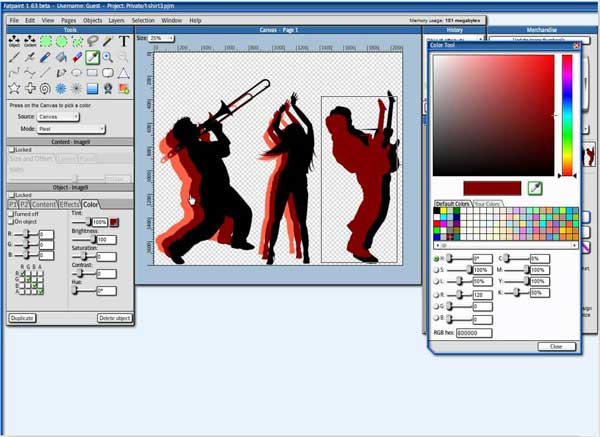
| Fat Paint | Browser | Graphic design with gradient and text effects | PNG, JPG | Limited |
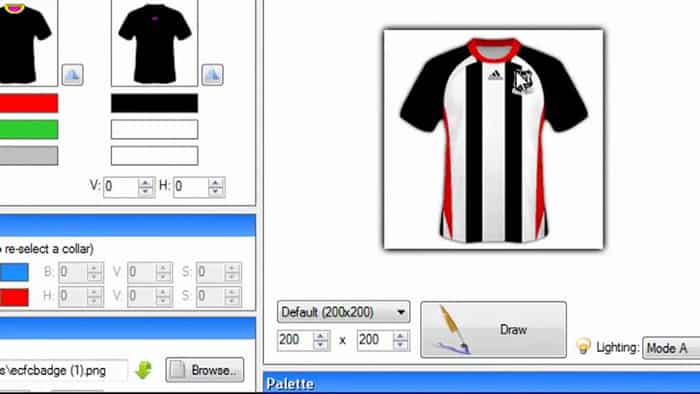
| Smart Shirt Designer | Browser | Shirt mockup visualization | JPG preview | None |
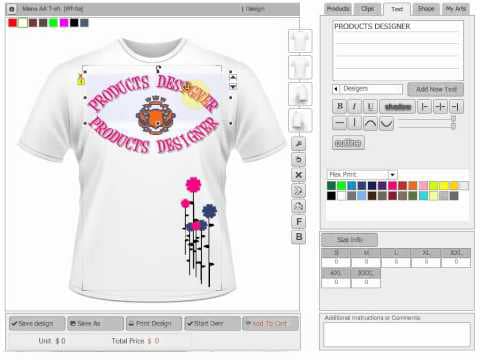
| Tee Designer Master | Browser | Complete shirt design UI with clipart | PNG | None |
| Flash T-Shirt Design | Browser | Legacy browser-based design | PNG | None |
| Placeit (Free tier) | Browser | Lifestyle mockup generation | JPG | None |
| Vectornator (Linearity Curve) | Desktop/iPad | iPad vector design for on-the-go artists | SVG, PDF, AI | Full |

Browser-Based Options
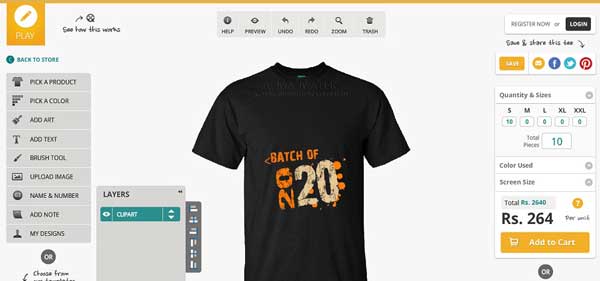
Browser tools trade power for accessibility. Canva's free tier handles text-heavy designs, promotional shirts, and team uniforms efficiently when artwork is simple. Custom Ink's online designer is purpose-built for shirt mockups — no installation, no learning curve, and the preview places artwork directly on a shirt silhouette. Fat Paint goes further with gradient tools and layer support inside a browser window, making it viable for slightly more complex graphics without any local installation.
Smart Shirt Designer and Tee Designer Master both visualize the finished product on actual garment shapes. That matters during client approval stages. Neither outputs press-ready vector files, so they function as the start of the pipeline, not the end. For anything heading to a Cricut or a vinyl cutter, the artwork needs to move into a desktop vector editor before the final export.
Pro tip: Browser tools are ideal for mockups and client approvals — always export final cut files from a vector-native desktop application like Inkscape instead.
Desktop Software
Inkscape is the top choice for vinyl and heat transfer workflows. It outputs SVG and EPS natively — the two formats every vinyl cutter and RIP software accepts without conversion. Inkscape is open-source, actively maintained, and handles node editing, Boolean path operations, and color fills as well as any paid vector editor in the sub-$100 tier.
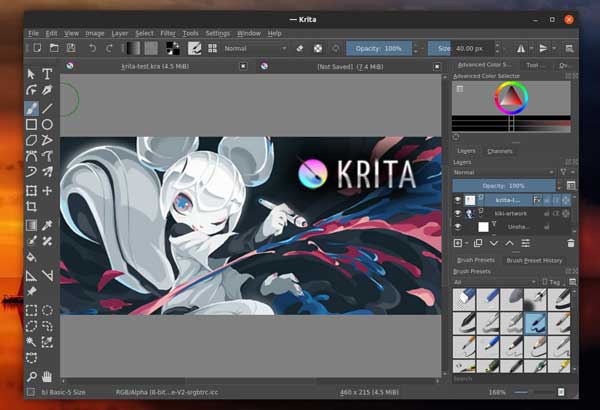
GIMP handles raster editing for high-DPI PNG files destined for DTF, direct-to-garment, and sublimation output. At 300 DPI and above, GIMP produces print-quality artwork with full color control. Krita completes the desktop roster for illustrators — its brush engine is excellent, and PSD import lets designers move files between platforms without quality loss.
From Sketch to Press-Ready File: A Step-by-Step Walkthrough
Producing press-ready artwork in free software follows a consistent process. Skip any of these steps and the file will cause problems at the press — whether that's jagged cut lines, color bleed, incorrect sizing, or outright file rejection from the print shop.
Setting Up the Canvas
- Set the document size to the print area, not the shirt dimensions. Standard full-front prints run 12×14 inches. Left-chest prints run 4×4 inches.
- Work at 300 DPI minimum for all raster artwork. Vector files are resolution-independent, but set document DPI to 300 anyway for reference accuracy.
- Use RGB color mode during design. Convert to CMYK only at export if the print shop explicitly requires it — most DTF and sublimation workflows accept RGB files.
- Keep design elements on separate named layers. Vinyl cutters and DTF workflows often require color separations, and organized layers make that step significantly faster.
- Set a transparent background. White shirts don't need a fill; dark shirts require a background only for light-colored HTV or underbase ink layers in screen printing.
Exporting for Heat Press
The export format determines where the file can go next. For vinyl cutting workflows, SVG is the universal format — every major cutter brand accepts it. EPS works for older RIP software. PNG at 300 DPI handles DTF, sublimation, and direct-to-garment output. Never export at 72 DPI — that's screen resolution, and it produces blurry prints on fabric.
Flatten layers before exporting raster files. For vector files, outline all fonts before saving — printers and cutters don't share font libraries, and outlined text prevents substitution errors at the production stage. In Inkscape: Text → Convert to Path. In GIMP: flatten the image before exporting as PNG to eliminate any layer transparency complications.
Warning: Exporting text as live type — not converted to paths — is among the most common causes of print failures, since the receiving software substitutes fonts and breaks the layout entirely.
Beginner Tools vs. Advanced Software: Which Fits the Workflow?
The wrong tool at the wrong skill level wastes time. Handing a beginner Inkscape's full node editor without context produces frustration, not artwork. Handing an experienced designer a browser mockup tool produces a dead end. Matching skill level to tool capability is the first design decision.
Best Picks for Beginners
Canva's free tier is the genuine entry point for first-time custom shirt design. The interface requires no prior design experience. Text tools, basic shapes, and a large template library handle 80% of what beginner projects need. Custom Ink's online designer goes one step further by rendering the artwork directly on a shirt mockup — new users see exactly how the finished product will look before ordering or pressing.
Smart Shirt Designer handles the same mockup function with slightly more design flexibility. Fat Paint adds gradient fills and basic illustration tools, making it a natural second step for users who've outgrown Canva's template-driven constraints. Neither of these tools requires installation or account creation, which removes the friction that stops beginners before they even start.
Best Picks for Experienced Designers
Inkscape is the benchmark for production-quality vector output in the free tool category. Designers with Illustrator experience will find the interface familiar within an hour. Node editing, path Boolean operations, gradient mesh, and Trace Bitmap — the live bitmap-to-vector conversion tool — are all present and functional. For illustration-heavy designs, Krita's brush engine and layer system match paid alternatives at the same price tier. Combining Inkscape for vector structure with Krita for painted textures and detail work covers nearly every HTV and DTF use case a professional workflow requires.
Designers running Cricut projects should also explore the full range of Cricut vinyl project ideas to understand how design file choices translate into finished cut results — decisions made at the software stage directly affect cuttability and weed time downstream.
What Real Makers Are Building With These Tools
Free design software isn't a compromise for hobbyists. Small businesses and professional crafters run entire product lines through free tools. The constraint is never the software capability — it's almost always the operator's workflow knowledge.
Custom Apparel for Events
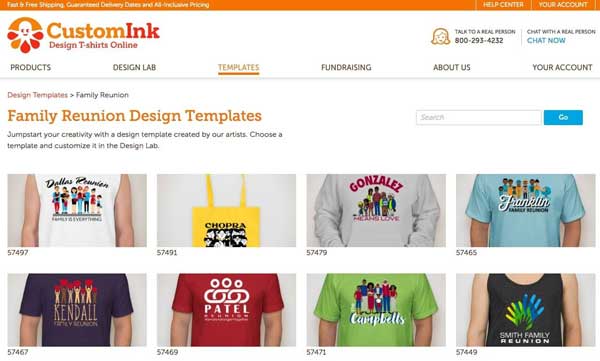
Event shirts are the most common use case for free design tools. Team reunions, charity runs, school groups, and corporate events all need 10–200 shirts on a short timeline and a tight budget. Canva handles the typography-heavy, logo-driven designs these events typically require. Files export as PNG and go directly to a local DTF transfer shop or get pressed at home. For home pressing operations, using the right heat press machine with DTF transfers from a PNG export produces professional results without outsourcing.
Small Batch Merch Operations
Independent artists and Etsy sellers use Inkscape and GIMP to run full merch production lines with zero software licensing costs. A single operator can manage the complete pipeline: concept illustration in Krita, vector cleanup and SVG export in Inkscape, client preview mockup in Canva, and final pressing with a desktop heat press. No monthly subscriptions, no per-seat licensing, no cloud lock-in.
The economics hold at small scale. At 20–50 shirts per design run, free software eliminates design tool overhead entirely. The only variable costs are blanks, transfers or ink, and pressing time — which is exactly the cost structure that makes small-batch merch profitable.
Insider Tips for Sharper, Press-Ready Artwork
The best free app or software to design T-shirt prints produces professional results — but only when operators know the edge cases. These tips address the quality failures most common in HTV, DTF, and sublimation workflows.
Working in Vector First
- Always start with vector artwork, even when the final output is a raster file. Convert to PNG at the export stage, not the design stage.
- Use Inkscape's Trace Bitmap function to convert any hand-drawn or scanned sketch into a cleanable vector path before adding detail.
- Avoid embedding raster images inside vector files — they degrade when the artwork is scaled and cause errors in vinyl cutting software.
- Keep anchor point counts low on cut paths. High-node paths slow down vinyl cutters and produce jagged cut lines at production speed.
- Group related design elements and lock background layers to prevent accidental edits during the final production prep stage.
Color Mode Gotchas
Screen colors and printed colors don't match automatically. RGB colors look vivid on monitor displays but shift when translated to CMYK or spot colors for screen printing. Design in RGB throughout, then test-print a small section on transfer paper before running a full batch. For sublimation workflows specifically, saturated colors compress significantly during the heat transfer process — oversaturation by 15–20% compensates for the dye migration effect and produces accurate final output on polyester garments.
Fixing Common Design Problems Before the Press
Most press failures originate in the design file, not the press settings or transfer quality. Catching these problems at the software stage costs nothing. Catching them after pressing costs blank shirts, transfer material, and press time. Here are the failures that appear most often in free-software workflows.
Low-Resolution Output
The most common problem is files exported at screen resolution — 72 or 96 DPI — when the press requires 300 DPI minimum. The fix is direct: set export DPI before every export, not after. In GIMP, the DPI field is in the Export As dialog under Advanced Options. In Inkscape, the Export PNG dialog has a DPI input — change 96 to 300 before clicking Export. Never upscale a 72 DPI file to 300 DPI after the fact. The pixels are already interpolated; the resulting apparent resolution increase is false and prints as soft or blurry on fabric.
Color Mismatch Between Screen and Press
- Calibrate the monitor. An uncalibrated display is the most common source of color mismatch that software settings alone cannot fix.
- Use Pantone references where the print shop supports spot color matching — hex values don't translate directly to press output.
- For HTV workflows, vinyl colors are fixed at manufacturing. Design colors must match available vinyl inventory, not the other way around.
- Always press a test swatch on a scrap garment before committing to a full run. Transfer paper type and blank fabric blend both affect final color differently.
Pro insight: For HTV projects, build a physical color reference card by pressing small swatches of each vinyl color onto white cotton scraps — it's more reliable than any on-screen color comparison tool.
Making Free Software Work Long-Term
Free tools require active workflow management. Unlike paid subscriptions with automatic updates and cloud sync, open-source desktop tools need deliberate setup and periodic maintenance. The right configuration makes free software genuinely sustainable for ongoing production volumes.
Stacking Free Tools Into a Full Pipeline
No single free tool handles the entire design-to-press pipeline. The optimal free stack uses each tool for its strongest function:
- Concept and illustration: Krita for painted, illustrated, or hand-drawn artwork with a full brush engine
- Vector cleanup and cutting files: Inkscape for SVG and EPS export, node editing, and Trace Bitmap conversion
- Mockups and client approval: Canva or Custom Ink designer for fast, convincing garment previews
- Raster cleanup and high-DPI PNG export: GIMP for color correction, layer flattening, and final PNG output
- Vinyl cutting integration: Free vinyl cutting software handles the final step from SVG to cutter path output
Each tool performs its specific job. Design files move between them as the artwork progresses through the pipeline. The result is a production workflow with zero monthly software costs and professional-grade output at every stage — which is why the free tool stack has become the default choice for operators in the heat press and vinyl craft space.
When to Upgrade to Paid Software
Free software has a practical ceiling. The signals that indicate an upgrade is warranted: production volume consistently exceeds 50 unique designs per month; client revision cycles require real-time cloud collaboration; advanced ICC color profile management becomes a production requirement; or the business needs legally defensible commercial licensing for stock assets. Below that threshold, the free stack described above covers the complete workflow. Above it, an Illustrator or CorelDRAW subscription is offset by time savings in production management — but that's a business decision, not a technical one.
Frequently Asked Questions
Is Inkscape good enough for professional T-shirt print design?
Inkscape produces SVG and EPS files that are indistinguishable from Adobe Illustrator output for vinyl cutting and screen printing purposes. Professional print shops and vinyl cutting workflows accept Inkscape-generated files without modification. The tool's node editor, Boolean path operations, and Trace Bitmap function cover every vector task a commercial shirt design workflow requires, at no cost.
Can free browser-based tools produce press-ready files?
Browser tools like Canva and Fat Paint produce PNG files suitable for DTF and sublimation printing when exported at sufficient resolution. They don't output SVG or EPS natively, making them unsuitable for vinyl cutting without conversion in a separate desktop tool. For any heat press workflow using cut vinyl or HTV, a vector-capable desktop application like Inkscape is required downstream in the pipeline.
What file format should T-shirt print designs be exported in?
SVG or EPS for vinyl cutting and HTV workflows. PNG at 300 DPI minimum for DTF, sublimation, and direct-to-garment printing. Never submit 72 DPI raster files or live-text vector files to a print shop or cutting workflow — both require redesign from scratch and delay production.
Key Takeaways
- The best free app or software to design T-shirt prints depends on output format — Inkscape leads for SVG/EPS vinyl and HTV workflows, while GIMP and Krita handle DTF and sublimation raster output.
- Browser-based tools like Canva, Custom Ink, and Fat Paint serve mockup and client approval stages best — they don't replace vector desktop software for final production files.
- Always export raster artwork at 300 DPI minimum and convert all text to paths or outlines before submitting files to a print shop or vinyl cutter.
- The optimal free production stack combines Krita for illustration, Inkscape for vector cleanup, and GIMP for high-DPI PNG export — covering the full pipeline with zero subscription costs.


About Alice Davis
Alice Davis is a crafts educator and DIY enthusiast based in Long Beach, California. She spent six years teaching textile design and applied arts at a community college, where she introduced students to everything from basic sewing techniques to vinyl cutting machines and heat press printing as practical, production-ready tools. That classroom experience means she has put more sewing machines, embroidery setups, Cricut systems, and heat press units through real project work than most reviewers ever will. At PalmGear, she covers sewing machines and embroidery tools, vinyl cutters, heat press gear, Cricut accessories, and T-shirt printing guides.
You can get FREE Gifts. Or latest Free phones here.
Disable Ad block to reveal all the info. Once done, hit a button below