How to Connect Two Monitors to a Laptop
by William Sanders
Our team first encountered the challenge of needing to connect two monitors to a laptop during a demanding remote collaboration project, where a single 15-inch screen made it nearly impossible to manage several open applications at the same time. That experience prompted an extensive exploration of multi-monitor configurations, and the results reshaped the way our team approaches everyday computing tasks at a fixed workstation. For anyone navigating the same challenge, our tech tips library offers a broad range of practical hardware and software guides, and this one covers the entire process from port identification to display configuration.
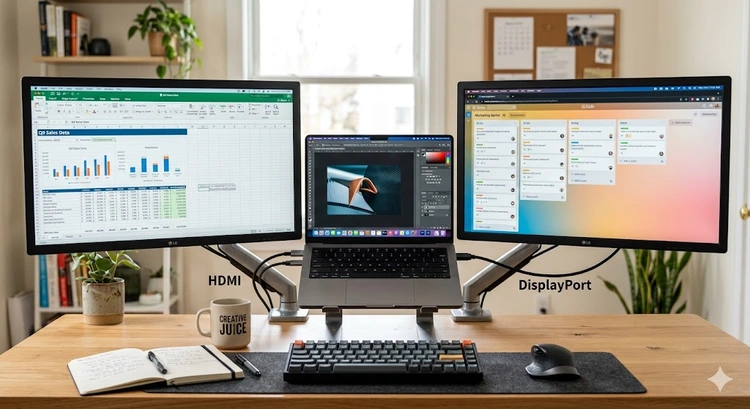
The process of connecting two external monitors to a laptop involves identifying the available video output ports (the physical connectors on the laptop's body used to transmit video signals to external screens), selecting the correct cables or adapters, and adjusting software display settings to match a particular workflow. Modern laptops vary considerably in their connectivity options, so examining the available ports before purchasing any additional hardware is always the recommended first step. Our team has worked through this setup across multiple laptop models and operating systems, and the most effective approach depends heavily on the specific hardware configuration involved.
According to Wikipedia's overview of multi-monitor computing, extending a desktop across multiple screens has been common in professional environments for decades, and consumer-grade laptops now support this configuration more reliably than ever before. The critical factor is matching the correct output technology to the correct display and understanding the trade-offs between each connection method before committing to a particular arrangement.
Contents

Benefits and Trade-offs of Using Two External Monitors
Productivity Gains Worth Considering
Expanding a laptop's workspace across two additional screens delivers a meaningful boost in productivity that most people notice within the first few hours of use. Our team regularly evaluates multi-monitor configurations for content creation, data analysis, and software development workflows, and the ability to keep reference material on one screen while working actively on another reduces the constant window-switching that slows progress considerably. The extended desktop space also reduces mental load in information-dense work environments, where juggling overlapping windows on a single display creates unnecessary cognitive friction throughout the day.
- Dedicated screen for communication tools — email, messaging, or calendar — while the primary screen handles core work tasks without interruption
- Side-by-side document comparison without resizing or overlapping windows, which simplifies editing, proofreading, and data entry tasks
- Separate displays for video playback, reference material, or real-time monitoring dashboards in technical or creative roles
- Improved ergonomics when monitors are positioned at eye level and arranged to match natural sight lines at the workstation
Drawbacks That Deserve Honest Assessment
The benefits of a dual-monitor laptop setup come alongside a set of trade-offs that deserve careful consideration before any hardware purchase is made. Power consumption increases noticeably when two external monitors are active, and this matters most for laptop users who depend on battery life for extended periods away from a power outlet. Cable management also grows more complex, and a desk with limited surface area can feel crowded once a multi-monitor arm or stand is incorporated into the arrangement alongside the laptop itself.
- Higher power draw reduces laptop battery life meaningfully when the system is running on battery rather than wall power
- Additional cables, adapters, or a docking station increase the upfront cost of the setup beyond the monitor purchase price alone
- Some older or budget laptops cannot support two simultaneous external displays without a specialized adapter that may introduce latency or resolution limits
- Desk space requirements increase substantially, which can be a practical constraint in smaller home office or apartment environments
When Dual Monitors Help — and When a Single Screen Is Enough
Ideal Use Cases for a Dual-Monitor Laptop Setup
Most people who work from home or operate in a fixed office environment benefit considerably from the additional screen space that two monitors provide alongside a laptop. Software developers, graphic designers, financial analysts, and content creators consistently report that a secondary display allows them to maintain focus without constantly switching between applications across a single cramped screen. Our team, for instance, uses one monitor for active work and another for sharing a screen during Google Meet calls, which eliminates the disruptive resizing that occurs when a single display must handle both roles simultaneously.
Content creators who record their screen on Windows for free also benefit significantly from a dual-monitor arrangement, since a clean recording area can occupy one display while monitoring tools, scripts, and chat windows remain fully visible on the other without cluttering the captured footage. Additional use cases where dual monitors deliver clear value include:
- Remote work environments that require simultaneous access to multiple software platforms without alt-tabbing between them constantly
- Creative workflows where source images, briefs, or color references need to remain visible while editing software occupies the primary display
- Financial or analytical work involving large spreadsheets that benefit from side-by-side row comparison without horizontal scrolling
- Streaming setups where one screen displays the active game and a second handles streaming software, viewer chat, and alerts
Scenarios Where One Screen Works Better
A dual-monitor setup is not the right choice in every situation, and our team considers it important to identify the circumstances where a single screen is more practical or equally effective. Laptop users who travel frequently or work across multiple locations each day will find the additional hardware impractical and cumbersome to transport, since most external monitors are not portable by nature. Anyone primarily using a laptop for light web browsing, casual reading, or basic email communication has little productivity to gain from the complexity that two external monitors introduce to the workspace.
Additionally, anyone experiencing existing laptop issues — such as those described in our guide on fixing a laptop touchpad that is not working — should resolve those underlying hardware or software problems before investing in a more complex multi-monitor configuration. A stable, properly functioning laptop forms the essential foundation of any reliable dual-monitor workstation setup.
Step-by-Step Tips for Connecting Two Monitors to a Laptop
Checking Ports and Adapter Requirements
The most important preparatory step before attempting to connect two monitors to a laptop is a thorough inspection of all available video output ports along the laptop's body. Most modern laptops include at least one HDMI port (High-Definition Multimedia Interface — the rectangular port most commonly associated with video output to televisions and monitors), and many also feature USB-C ports capable of transmitting video through a protocol called DisplayPort Alternate Mode. Our team recommends consulting the laptop manufacturer's official specifications page alongside a physical inspection, since not all USB-C ports carry video signals even when they appear identical to those that do.
- Identify HDMI (rectangular 19-pin), DisplayPort (asymmetric trapezoid), USB-C (small oval), or VGA (15-pin trapezoid, found on older machines) ports by shape and label
- Verify that any USB-C port being considered for video output explicitly supports DisplayPort Alternate Mode, Thunderbolt 3, or Thunderbolt 4
- Check the manufacturer specifications to confirm the maximum number of external displays the laptop's graphics hardware can support simultaneously
- For laptops with only one video-out port, a multi-display USB-C adapter or docking station will be necessary to run two monitors at the same time
Configuring Display Settings in Windows and macOS
Once the physical connections are established and the monitors power on, the software configuration step determines how those two additional screens interact with the laptop's built-in display. On Windows, right-clicking the desktop and selecting "Display Settings" opens a panel where each connected monitor appears as a numbered block, and display arrangement, resolution, and refresh rate are all adjustable from this single panel without installing additional software. On macOS, the equivalent panel is located under System Settings, then "Displays," where monitors can be repositioned to reflect their actual physical placement on the desk.
Our team recommends setting each monitor to its native resolution — the resolution the screen was engineered to display at, which produces the sharpest image quality — and selecting "Extend" mode rather than "Duplicate" mode, so each display holds its own unique portion of the desktop. Keeping display drivers current is also essential, and the guide on how to update device drivers in Windows covers the entire process clearly, since outdated graphics drivers are among the most common causes of monitor detection failures in Windows environments.
Comparing Connection Methods: HDMI, DisplayPort, USB-C, and Docking Stations
Choosing the Right Cable or Adapter
The connection method used to attach external monitors to a laptop has a direct impact on image quality, maximum resolution, and refresh rate — making this decision worth careful research before any hardware is ordered. Our team has evaluated all four major connection types across a range of laptops and monitors, and each method carries distinct strengths and limitations that suit different use cases and budget ranges. The table below summarizes the key differences between the connection methods most relevant to anyone attempting to connect two monitors to a laptop.
| Connection Type | Max Resolution | Max Refresh Rate | Audio Support | Best For |
|---|---|---|---|---|
| HDMI 2.0 | 4K (3840×2160) | 60 Hz | Yes | Standard home office monitors and televisions used as displays |
| DisplayPort 1.4 | 8K (7680×4320) | 120 Hz+ | Yes | High-refresh gaming monitors and creative professional displays |
| USB-C (Alt Mode) | 4K (3840×2160) | 60 Hz | Yes | Thin and light laptops with limited dedicated video ports |
| VGA | 1920×1200 | 60 Hz | No | Legacy monitors and older projectors where no alternative exists |
| Docking Station (Thunderbolt 4) | Up to 8K (varies by model) | 120 Hz+ | Yes | Full workstation setups with multiple peripherals and dual monitors |
When a Docking Station Makes Sense
A docking station — a hub that connects to the laptop through a single USB-C or Thunderbolt cable and provides multiple output ports for monitors and peripherals — represents the most convenient solution for anyone who regularly connects two monitors alongside a keyboard, mouse, and storage device to the same laptop. Our team finds that docking stations eliminate cable clutter substantially, since a single cable connection activates all attached monitors and peripherals at once without requiring individual port management each time the laptop is docked or undocked. Thunderbolt 4 docking stations in particular offer the highest bandwidth and the most consistent support for two high-resolution displays, though their price point is higher than simple cable-and-adapter alternatives.
For users who also manage other aspects of their Windows network environment at a new workstation, our guides on finding a MAC address in Windows and changing the DNS server on Windows for faster browsing may prove useful when configuring network settings alongside a freshly established dual-monitor docking station arrangement.
Keeping a Dual-Monitor Setup Running Smoothly
Routine Checks and Driver Maintenance
A dual-monitor configuration introduces additional hardware into the system that requires periodic attention to maintain reliable performance over time. Our team recommends checking for graphics driver updates at least once per month, as manufacturers release updates regularly to improve display stability, resolve visual glitches, and extend compatibility to newer monitors and connection standards. The process takes only a few minutes and is thoroughly documented in the guide on updating device drivers in Windows, which covers each step clearly for anyone unfamiliar with the Windows Device Manager interface.
- Inspect all video cable connections monthly for loosening or physical wear at the point where the cable meets each port, since vibration from fans or nearby movement can gradually loosen connections
- Dust the monitor ventilation slots every few weeks to prevent heat buildup that can shorten display component lifespan over time
- Verify that power settings do not switch monitors off after very short idle periods, which can disrupt workflow continuity during brief pauses in activity
- Keep a record of each monitor's model number and current firmware version to simplify troubleshooting if a display issue arises after a system update
Troubleshooting Common Display Problems
When a monitor fails to be detected after a new connection is established, the most effective first step is confirming that the cable is firmly seated at both the laptop port and the monitor's input port, since a partially inserted cable is the single most frequent cause of this problem. Our team also recommends pressing the Windows key combined with the letter P to open the projection menu and selecting "Extend," which can prompt the operating system to recognize a newly connected display that did not appear automatically in Display Settings. If the monitor still does not register, restarting the laptop with all monitors physically connected before the system begins loading often resolves detection failures caused by initialization order conflicts during the boot sequence.
For users who have recently adjusted other Windows system settings — including those outlined in our guide on finding a saved WiFi password on Windows — it is worth noting that display settings and network configuration settings can occasionally interact during major system updates, and a clean restart after applying multiple changes resolves most conflicts without any additional troubleshooting steps required.
Frequently Asked Questions
Can any laptop support two external monitors at the same time?
Not every laptop is capable of driving two external monitors simultaneously. Most modern business-class and gaming laptops include sufficient graphics hardware and port configurations to support dual external displays, but many budget or ultraportable models are limited to a single external display without the addition of a specialized USB-C multi-display adapter or Thunderbolt docking station. Our team always recommends verifying the laptop's official specifications before purchasing monitors or accessories for a dual-monitor workstation.
What is the difference between extending and duplicating displays when connecting two monitors to a laptop?
Extending displays creates one large, continuous desktop across all connected screens, allowing different applications and windows to occupy separate displays independently and increasing the total usable workspace. Duplicating displays — sometimes called mirroring — shows the identical image on every connected monitor simultaneously, which is useful for presentations but provides no additional desktop real estate. Our team recommends extended mode for productivity workflows and duplicated mode exclusively for presentation scenarios where the audience needs to see the same content as the presenter.
Does running two external monitors slow a laptop down noticeably?
Operating two external monitors places additional load on the laptop's graphics processing unit (GPU — the component responsible for rendering all on-screen visuals), which can reduce performance in graphics-intensive applications such as video editing software or modern games running at high settings. For standard office tasks including document editing, web browsing, and communication applications, most people notice no meaningful performance reduction when adding two external monitors to a laptop equipped with a reasonably current processor and integrated or discrete graphics hardware.
What steps should anyone take if one external monitor is not being detected?
The recommended first action is to confirm that the video cable is fully and firmly seated at both ends, then to open Display Settings on Windows or the Displays panel in macOS System Settings and use the manual "Detect" button to prompt the operating system to search for connected displays. If the monitor still does not appear, updating the graphics driver, trying a different cable or port, and restarting the laptop with all monitors connected prior to the boot sequence are the next logical steps before concluding that a hardware fault exists.
Is a docking station required to connect two monitors to a laptop?
A docking station is not strictly required if the laptop already provides two separate video output ports — such as one HDMI port and one USB-C port that supports DisplayPort Alternate Mode — since each monitor can connect independently to its own dedicated port without any additional hardware. However, for laptops that offer only a single video output port, a docking station or a multi-display USB-C adapter is the most practical and stable solution available. Our team consistently finds that Thunderbolt 4 docking stations deliver the most reliable performance for permanent dual-monitor workstation configurations.
Next Steps
- Examine the laptop's physical ports and consult the manufacturer's specifications page to confirm exactly how many external displays the graphics hardware supports before purchasing any monitors, cables, or adapters.
- Select the appropriate connection method — HDMI 2.0 for standard office use, DisplayPort 1.4 for high-refresh professional displays, or a Thunderbolt 4 docking station for a full multi-peripheral workstation — based on the laptop's available ports and the intended use case.
- Connect both monitors, open Display Settings on Windows or System Settings on macOS, set the display mode to "Extend," and arrange the monitor layout on screen to match their actual physical positions on the desk.
- Follow the guide on updating device drivers in Windows to ensure the graphics driver is current, which prevents the most common monitor detection and resolution errors encountered after a new dual-monitor connection.
- Establish a monthly maintenance habit that includes inspecting cable connections, checking for driver updates, and cleaning monitor ventilation openings to keep the entire dual-monitor setup performing reliably over the long term.


About William Sanders
William Sanders is a former network systems administrator who spent over a decade managing IT infrastructure for a mid-sized logistics company in San Diego before moving into full-time gear writing. His years in IT gave him deep hands-on experience with networking equipment, routers, modems, printers, and scanners — the kind of hardware most reviewers only encounter through spec sheets. He also has a long background in consumer electronics, with a particular focus on home audio and video setups. At PalmGear, he covers networking gear, printers and scanners, audio and video equipment, and tech troubleshooting guides.
You can get FREE Gifts. Or latest Free phones here.
Disable Ad block to reveal all the info. Once done, hit a button below