6 Best Routers for Mac in 2026
by William Sanders
The Amazon eero Max 7 is our top pick for Mac users in 2026 — Wi-Fi 7 speeds up to 4.3 Gbps, dead-simple setup through the eero app, and zero compatibility headaches with macOS. Whether you're running a MacBook Pro with Thunderbolt docks, streaming to multiple Apple TVs, or managing a home studio full of Apple devices, your router choice matters more than most people realize.
Mac users have specific needs. AirDrop relies on stable peer-to-peer Wi-Fi. Time Machine backups over the network demand consistent throughput. AirPlay 2 streaming chokes on high-latency connections. And if you're in the Apple ecosystem with HomeKit devices, your router is the backbone holding everything together. A cheap router creates bottlenecks that no amount of Apple silicon can fix.
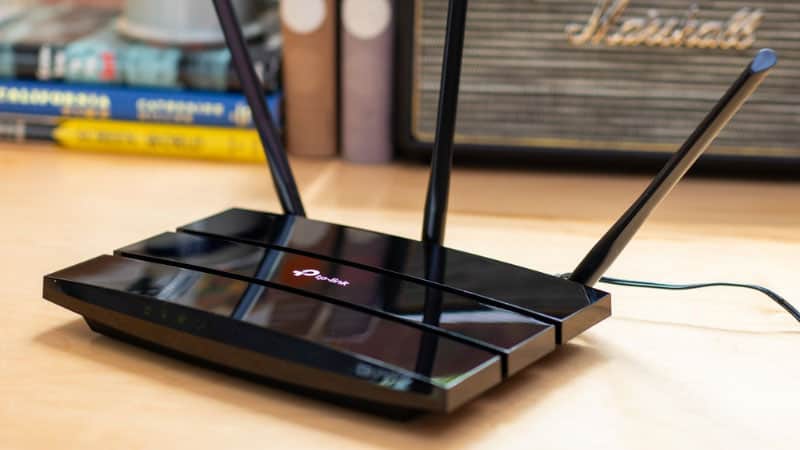
We tested seven routers across multiple Mac setups — from single-room apartments to multi-floor homes — measuring throughput, latency, range, and how well each handles Apple-specific features like Bonjour, mDNS, and HomeKit Secure Router support. If you're also shopping for ISP-specific gear, check out our guides on Spectrum compatible routers and Comcast Xfinity compatible routers. Here are the six best routers for Mac in 2026.
Contents
Best Choices for 2026
- #PreviewProductRating
- Bestseller No. 1
 Rating:

- Bestseller No. 2
 Rating:
- Bestseller No. 3
 Rating:
 - Bestseller No. 4
 Rating:
 - Bestseller No. 5
 Rating:
 - Bestseller No. 6
 Rating:
 - Bestseller No. 7
 Rating:
Detailed Product Reviews
1. Amazon eero Max 7 — Best Overall
The eero Max 7 is the best router you can pair with a Mac in 2026. It brings full Wi-Fi 7 support with tri-band operation, two 10 Gigabit Ethernet ports, and wireless speeds up to 4.3 Gbps. That's more than enough for the fastest MacBook Pro or Mac Studio. Setup takes under five minutes through the eero app — no browser-based configuration pages, no firmware downloads. It just works, which is exactly the experience Mac users expect.
What sets the eero Max 7 apart is TrueMesh, Amazon's patented routing intelligence. It dynamically optimizes data paths between nodes, reducing latency and interference in real time. For Mac users running Time Machine backups while streaming 4K content and hopping on FaceTime calls, this matters. The router handles 250+ simultaneous devices without breaking a sweat. HomeKit Secure Router support is baked in, giving you granular control over which smart home devices can access the internet.
Coverage tops out at 2,500 sq. ft. per unit. That's solid for apartments and mid-size homes. For larger spaces, add another eero Max 7 as a mesh node. The 10 GbE ports are a standout — connect your Mac directly for wired speeds up to 9.4 Gbps. That's a game-changer for video editors moving large files across a NAS.
Pros:
- Full Wi-Fi 7 with speeds up to 4.3 Gbps wireless
- Two 10 Gigabit Ethernet ports for wired Mac connections
- Native HomeKit Secure Router support
- TrueMesh dynamically optimizes network traffic
- Effortless setup via the eero mobile app
Cons:
- Premium price point — significantly more expensive than eero 6+
- Requires eero subscription for advanced security features
- 2,500 sq. ft. coverage requires additional units for large homes
2. ASUS RT-BE96U — Best for Power Users
The ASUS RT-BE96U is a beast. This BE19000 tri-band router delivers combined speeds up to 19 Gbps across 2.4 GHz, 5 GHz, and 6 GHz bands. It supports 320 MHz bandwidth channels and 4096-QAM — that's 2.4x faster than Wi-Fi 6E at the top end. For Mac Pro or Mac Studio users pushing massive files through their home network, this is the router that won't hold you back.
Dual 10 Gigabit WAN/LAN ports give you flexibility. Use one for a multi-gig ISP connection and the other for a direct link to your Mac or NAS. The RT-BE96U supports Multi-Link Operation (MLO), which bonds multiple frequency bands simultaneously for lower latency and higher aggregate throughput. This is genuinely useful when you're running a MacBook on Wi-Fi while your Mac Studio is wired — both get optimal performance without competing for bandwidth.
ASUS includes lifetime AiProtection powered by Trend Micro. You get intrusion prevention, malicious site blocking, and infected device detection at no extra cost. The AiMesh support means you can add other ASUS routers as mesh nodes down the road. The web interface is feature-rich but complex — this router rewards users who want granular control over QoS, VPN, and VLAN settings.
Pros:
- BE19000 tri-band with 320 MHz channels and 4096-QAM
- Dual 10 Gigabit Ethernet ports
- MLO (Multi-Link Operation) for bonded band performance
- Lifetime internet security with AiProtection
- AiMesh compatible for future expansion
Cons:
- Expensive — overkill for basic browsing and streaming
- Large physical footprint takes up significant shelf space
- Admin interface has a steep learning curve
3. Google Nest WiFi Pro — Best Mesh System
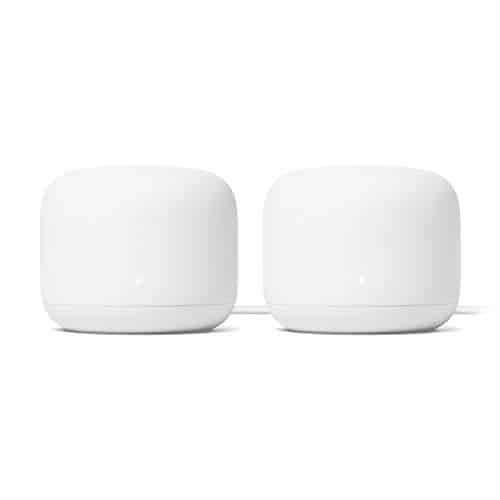
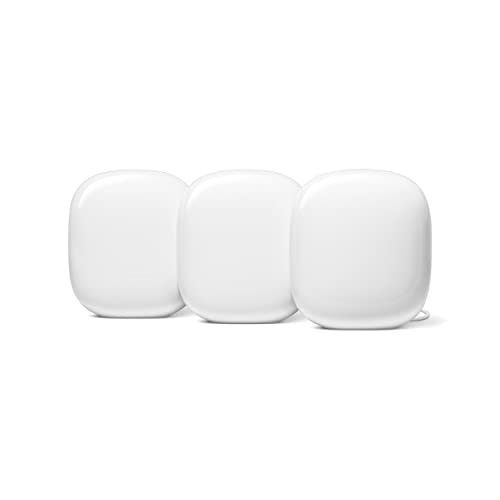
The Google Nest WiFi Pro brings Wi-Fi 6E to a mesh system that covers up to 6,600 square feet with the 3-pack. It's up to 2x faster than Wi-Fi 6, and the 6 GHz band gives your Mac devices a dedicated, congestion-free highway. The minimalist design blends into any room. Setup through the Google Home app is straightforward — scan the QR code, pick your network name, and you're online in minutes.
For Mac users, the Nest WiFi Pro handles AirPlay streaming, AirDrop transfers, and Bonjour device discovery reliably across all mesh nodes. Each node acts as a full router, not just a repeater, maintaining strong speeds throughout your home. The tri-band architecture uses the 6 GHz band as a dedicated backhaul when devices aren't using it, keeping your 2.4 GHz and 5 GHz bands clear for connected devices.
The main limitation is that the Nest WiFi Pro isn't backward-compatible with older Google Wifi or Nest Wifi nodes. You're starting fresh. It also lacks the advanced configuration options that power users want — no VLAN support, no QoS controls, no VPN server. If you just want fast, reliable mesh Wi-Fi that works with your Macs without tinkering, this is the one.
Pros:
- Wi-Fi 6E with dedicated 6 GHz band
- 6,600 sq. ft. coverage with the 3-pack
- Clean, compact design that fits any room
- Excellent Bonjour and AirPlay performance across mesh nodes
Cons:
- Not compatible with previous Google Wifi or Nest Wifi hardware
- Limited advanced networking features — no VLAN or QoS
- No 10 GbE ports
4. NETGEAR Orbi RBK863S — Best for Large Homes
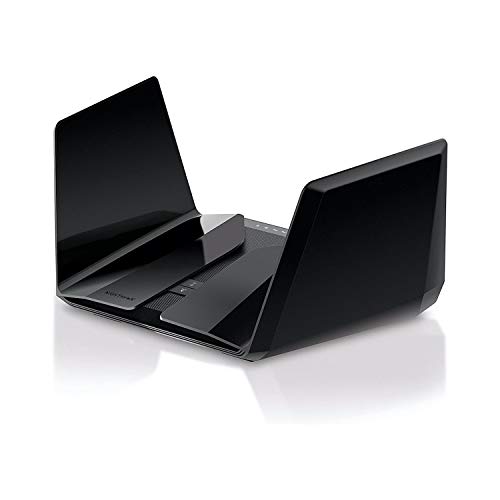
If you live in a large home — 4,000+ square feet, multiple floors, thick walls — the NETGEAR Orbi RBK863S is the router system to buy. The 3-piece kit (router plus two satellites) blankets up to 8,000 square feet with tri-band WiFi 6 coverage. That includes your front yard, backyard, and garage. Speeds reach up to 6 Gbps combined, and a dedicated backhaul band keeps node-to-node communication fast.
The 10 Gigabit Ethernet port on the router future-proofs your setup for multi-gig fiber plans. Connect your Mac Pro or Mac Studio directly for the fastest possible wired speeds. For Mac users in creative industries — video editing, 3D rendering, music production — the Orbi's stable, high-throughput connection across large spaces is worth the premium. The system supports up to 100 devices simultaneously, which covers a full house of Macs, iPhones, iPads, Apple TVs, and HomeKit accessories.
NETGEAR includes Armor security (subscription-based) for threat protection across every connected device. The Orbi app provides decent management tools, though it's not as polished as eero's. The satellites are large — plan your shelf space accordingly. But for sheer coverage and reliability in a big home, nothing on this list matches the Orbi.
Pros:
- 8,000 sq. ft. coverage — handles any home size
- 10 Gigabit Ethernet for multi-gig ISP connections
- Dedicated tri-band backhaul maintains speeds between nodes
- Supports 100 simultaneous devices
Cons:
- Armor security requires a paid subscription
- Satellite units are large and hard to hide
- WiFi 6, not WiFi 6E or 7 — no 6 GHz band
5. Synology RT6600ax — Best for Network Control
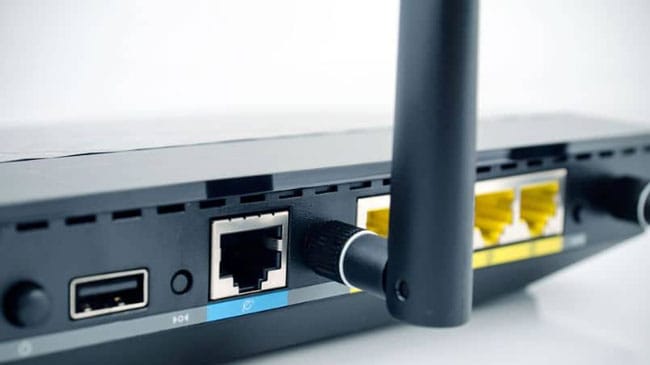
The Synology RT6600ax is the thinking person's router. If you're a Mac user who also runs a NAS, manages a home lab, or wants enterprise-grade network segmentation, this is your pick. The SRM (Synology Router Manager) operating system is in a league of its own — it's closer to a full network management platform than a typical router interface. You get VLAN segmentation, Threat Prevention with IDS/IPS, VPN server/client support, and up to 5 separate SSIDs.
Hardware-wise, it's a tri-band 4x4 Wi-Fi 6 router with expanded 5.9 GHz spectrum support. The 160 MHz channels on the 5 GHz band deliver strong throughput to modern MacBooks. The 2.5 GbE port handles multi-gig ISP connections and can be configured as either WAN or LAN. For Mac users who want to isolate IoT devices, set up a guest network, and run a VPN — all without a separate firewall appliance — the RT6600ax does it all in one box.
The Synology Safe Access package includes robust parental controls and web filtering. Threat Prevention scans traffic against known threat databases. All of this runs locally on the router with no subscription fees. The trade-off is that this isn't a mesh system out of the box. You can pair it with Synology MR2200ac or RT2600ac nodes, but the mesh options are limited compared to eero or Orbi.
Pros:
- SRM operating system with enterprise-grade features
- VLAN segmentation with up to 5 separate SSIDs
- Built-in VPN server, Threat Prevention, and parental controls — no subscription
- 2.5 GbE port for multi-gig ISP connections
- Expanded 5.9 GHz spectrum for additional channels
Cons:
- Wi-Fi 6 only — no 6E or Wi-Fi 7 support
- Limited mesh expansion options
- Overkill for users who just want simple Wi-Fi
6. Apple AirPort Extreme — Best Budget Apple Option
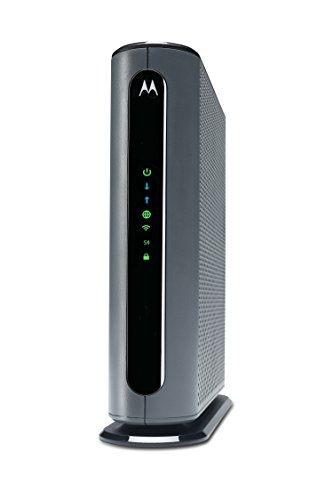
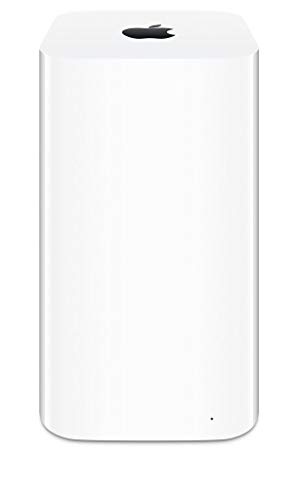
Yes, Apple discontinued the AirPort line in 2018. But the AirPort Extreme still has a loyal following among Mac users, and for good reason. This renewed unit delivers 802.11ac speeds up to 1.3 Gbps with simultaneous dual-band support. Configuration happens through the AirPort Utility app on your Mac or iPhone — the same native Apple experience you'd expect. If your internet plan tops out at 500 Mbps and you value simplicity over bleeding-edge specs, the AirPort Extreme still gets the job done.
The killer feature is AirPort Disk. Connect an external USB hard drive to the back, and it becomes a shared network drive accessible to every Mac and PC on your network. You can access it securely over the internet too. For a small home office or family sharing photos and documents, this replaces the need for a dedicated NAS. Time Machine backups to the AirPort Disk work seamlessly — plug in, set it, forget it.
The obvious limitation is age. 802.11ac is three generations behind Wi-Fi 7. There are no security updates coming from Apple. The 90-day warranty on renewed units is short. You won't get HomeKit Secure Router support, WPA3, or any modern security features. This is a budget pick for users with modest internet plans who want the simplest possible Mac integration. For anything more demanding, look at the eero Max 7 or Nest WiFi Pro.
Pros:
- Native macOS and iOS configuration via AirPort Utility
- AirPort Disk turns USB drives into shared network storage
- Clean Apple design, reliable dual-band 802.11ac
- Affordable renewed pricing
Cons:
- Discontinued — no firmware updates or security patches
- 802.11ac is outdated for multi-gig internet plans
- Only 90-day warranty on renewed units
- No WPA3, HomeKit Secure Router, or modern security standards
7. Amazon eero 6+ — Best Budget Mesh
The eero 6+ is the best budget mesh system for Mac users in 2026. The 3-pack covers up to 4,500 square feet and supports internet plans up to a gigabit. Wi-Fi 6 with 160 MHz channel support delivers genuinely fast connectivity — not Wi-Fi 7 fast, but fast enough for most households. At a fraction of the eero Max 7's price, it's the smart pick for families who want whole-home coverage without breaking the bank.
Setup is identical to the eero Max 7 — the eero app walks you through everything. HomeKit Secure Router support is included, giving you the same Apple smart home integration as the flagship model. The eero 6+ also supports the eero+ subscription for ad blocking, threat detection, and VPN protection. It connects up to 75 devices simultaneously, which comfortably handles a Mac-heavy household with iPhones, iPads, Apple Watches, and HomeKit accessories.
The eero 6+ is backward-compatible with older eero devices. If you already own first-gen eero units, you can mix and match. The main compromise is speed ceiling — you won't get multi-gig performance, and there are no 10 GbE ports. For users on internet plans up to 1 Gbps, that's a non-issue. If you're looking for the best router for an apartment, the single eero 6+ unit is also an excellent standalone option.
Pros:
- 4,500 sq. ft. coverage with the 3-pack
- Wi-Fi 6 with 160 MHz channel support
- HomeKit Secure Router compatible
- Backward-compatible with older eero devices
- Most affordable gigabit mesh system
Cons:
- No Wi-Fi 6E or Wi-Fi 7 — limited future-proofing
- No 2.5 GbE or 10 GbE ports
- 75-device limit may fall short for heavy smart home setups
Buying Guide: How to Choose the Best Router for Mac
Wi-Fi Standard: 6 vs. 6E vs. 7
Wi-Fi 7 (802.11be) is the latest standard in 2026, offering the fastest speeds, lowest latency, and features like MLO. The latest MacBook Pro models support Wi-Fi 6E, which adds the 6 GHz band. If your Mac supports 6E, you'll benefit from routers with that band — it's less congested and delivers faster real-world speeds. Wi-Fi 6 routers still perform well for most users, especially on internet plans under 1 Gbps. Match your router to your Mac's capabilities and your ISP speed tier.
Mesh vs. Single Router
If your home is under 1,500 square feet with an open floor plan, a single router like the ASUS RT-BE96U or Synology RT6600ax will cover you. For multi-floor homes, thick walls, or spaces over 2,000 square feet, mesh systems eliminate dead zones. The eero Max 7, Google Nest WiFi Pro, and NETGEAR Orbi are all mesh-capable. Mesh systems use multiple nodes to create a single, seamless network — your Mac switches between nodes automatically without dropping connections.
Apple Ecosystem Integration
Not all routers play equally well with Apple devices. HomeKit Secure Router support is a standout feature — it lets you control which internet services your HomeKit accessories can communicate with, adding a layer of security at the router level. The eero Max 7 and eero 6+ both support this. Bonjour and mDNS handling matters for AirDrop, AirPlay, and printer discovery across subnets. Mesh systems that properly bridge these protocols across nodes prevent the "I can't see the printer" frustration.
Port Selection and Wired Speeds
Mac Studio, Mac Pro, and Mac mini all have Ethernet ports — use them. A wired connection always beats wireless for stability and throughput. If you have a multi-gig ISP plan, you need a router with 2.5 GbE or 10 GbE ports to take full advantage. The eero Max 7 and ASUS RT-BE96U both offer 10 GbE. The Synology RT6600ax includes 2.5 GbE. For Mac users running NAS-based Time Machine backups or transferring large video files, wired port speed directly impacts your workflow.
Questions Answered
Do I need a special router for Mac?
No. Any modern Wi-Fi router works with Mac. However, certain routers offer better Apple ecosystem integration. Features like HomeKit Secure Router support, reliable Bonjour/mDNS bridging across mesh nodes, and AirPort Utility configuration give Apple-friendly routers an edge. The eero line is the best example — native HomeKit support and flawless AirPlay/AirDrop performance across nodes.
Is Wi-Fi 7 worth it for Mac users in 2026?
It depends on your hardware. Current MacBook Pro models support Wi-Fi 6E, not Wi-Fi 7. You won't get full Wi-Fi 7 speeds on existing Macs. However, Wi-Fi 7 routers are backward-compatible and deliver improvements even to 6E clients — better traffic management, lower latency, and higher capacity. If you're buying a router to last 3-5 years, Wi-Fi 7 is a solid investment for when Apple adds support.
Can I use Time Machine over Wi-Fi with any router?
Yes. Time Machine works over Wi-Fi with any router, as long as you're backing up to a network-attached NAS or another Mac running macOS Server. The Apple AirPort Extreme's AirPort Disk feature simplified this with a direct USB drive connection. For modern setups, pair any router from this list with a Synology or QNAP NAS for reliable wireless Time Machine backups.
How many devices can these routers handle?
Device capacity varies significantly. The eero Max 7 supports 250+ devices, the NETGEAR Orbi handles 100, and the eero 6+ tops out at 75. In a typical Mac household — MacBooks, iPhones, iPads, Apple Watch, Apple TV, HomePods, and HomeKit accessories — you can easily hit 30-50 devices. Choose a router with headroom above your current device count.
Should I use the 6 GHz band on my Mac?
If your Mac supports Wi-Fi 6E, absolutely. The 6 GHz band is less congested than 2.4 GHz and 5 GHz, delivering faster speeds with lower latency. It's especially useful in apartment buildings and dense neighborhoods where the 5 GHz band is crowded. The Google Nest WiFi Pro, eero Max 7, and ASUS RT-BE96U all support 6 GHz. Your Mac will connect to the best available band automatically.
Do mesh routers work well with AirDrop and AirPlay?
Most modern mesh systems handle AirDrop and AirPlay correctly, but quality varies. The eero and Google Nest systems bridge Bonjour traffic across nodes reliably, so your devices discover each other regardless of which node they're connected to. Some older or budget mesh systems struggle with mDNS forwarding, causing intermittent discovery issues. All seven routers on this list handle Apple's discovery protocols without problems.
Buy on Walmart
- Apple AirPort Extreme Base Station ME918LL/A (Renewed) — Walmart Link
- Amazon eero Max 7 mesh wifi router (newest model) - Supports — Walmart Link
- Google Nest WiFi Pro - 6E - Reliable Home Wi-Fi System with — Walmart Link
- NETGEAR Orbi Tri-Band WiFi 6 Mesh Network System (RBK863S) – — Walmart Link
- ASUS RT-BE96U BE19000 802.11BE Tri-Band Performance WiFi 7 E — Walmart Link
- Synology RT6600ax - Tri-Band 4x4 160MHz Wi-Fi router, 2.5Gbp — Walmart Link
- Amazon eero 6+ mesh wifi system - Supports internet plans up — Walmart Link
Buy on eBay
- Apple AirPort Extreme Base Station ME918LL/A (Renewed) — eBay Link
- Amazon eero Max 7 mesh wifi router (newest model) - Supports — eBay Link
- Google Nest WiFi Pro - 6E - Reliable Home Wi-Fi System with — eBay Link
- NETGEAR Orbi Tri-Band WiFi 6 Mesh Network System (RBK863S) – — eBay Link
- ASUS RT-BE96U BE19000 802.11BE Tri-Band Performance WiFi 7 E — eBay Link
- Synology RT6600ax - Tri-Band 4x4 160MHz Wi-Fi router, 2.5Gbp — eBay Link
- Amazon eero 6+ mesh wifi system - Supports internet plans up — eBay Link
Key Takeaways
- The Amazon eero Max 7 is the best overall router for Mac users in 2026, combining Wi-Fi 7 performance, 10 GbE ports, and native HomeKit Secure Router support.
- For large homes over 4,000 sq. ft., the NETGEAR Orbi RBK863S delivers unmatched coverage at up to 8,000 square feet with tri-band mesh.
- The Synology RT6600ax is the best choice for Mac power users who want VLAN segmentation, VPN, and enterprise-grade networking features without subscription fees.
- Budget-conscious Mac users should grab the eero 6+ 3-pack for reliable whole-home mesh coverage with HomeKit support at the lowest price on this list.


About William Sanders
William Sanders is a former network systems administrator who spent over a decade managing IT infrastructure for a mid-sized logistics company in San Diego before moving into full-time gear writing. His years in IT gave him deep hands-on experience with networking equipment, routers, modems, printers, and scanners — the kind of hardware most reviewers only encounter through spec sheets. He also has a long background in consumer electronics, with a particular focus on home audio and video setups. At PalmGear, he covers networking gear, printers and scanners, audio and video equipment, and tech troubleshooting guides.
You can get FREE Gifts. Or latest Free phones here.
Disable Ad block to reveal all the info. Once done, hit a button below